

If you’re an Institute Admin and need to add multiple families at once instead of creating them one-by-one, you can use our Bulk Import tool. This lets you upload a spreadsheet of family details and automatically connect them to their children.
Steps to Bulk Import Families:
1. Log in as an Institute Admin on your Journey2Jannah account.
2. From the main dashboard, go to “FAMILIES” from left side panel and click “ADD FAMILY” button in top right corner.
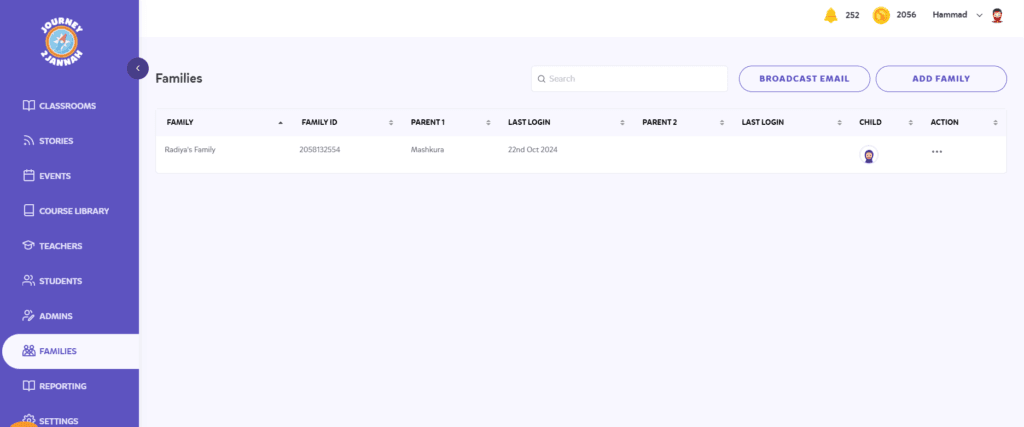
3. This will open the page below, where you should click on: “Import Family”.
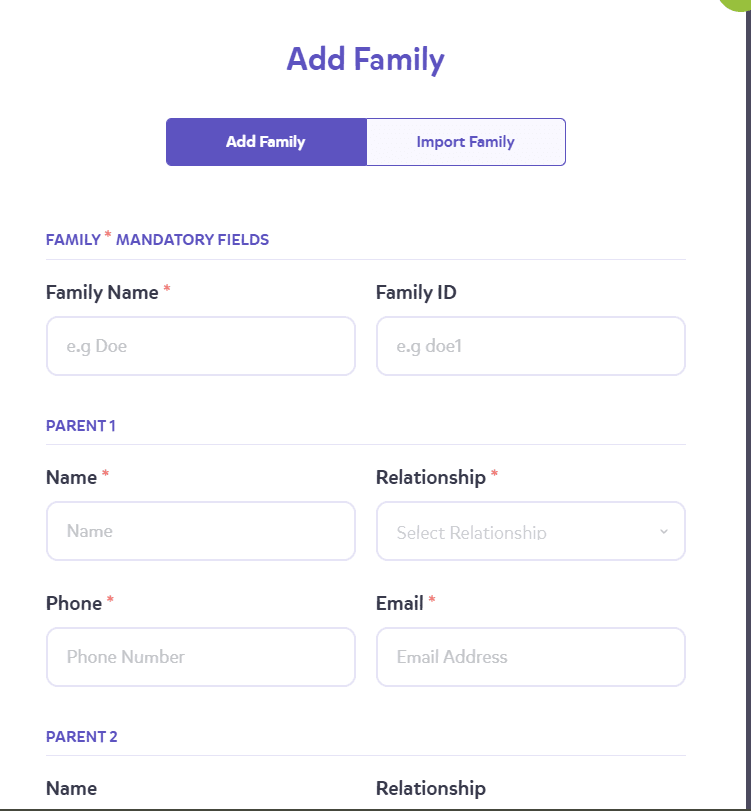
4. Click Download Template to get the CSV sample file.
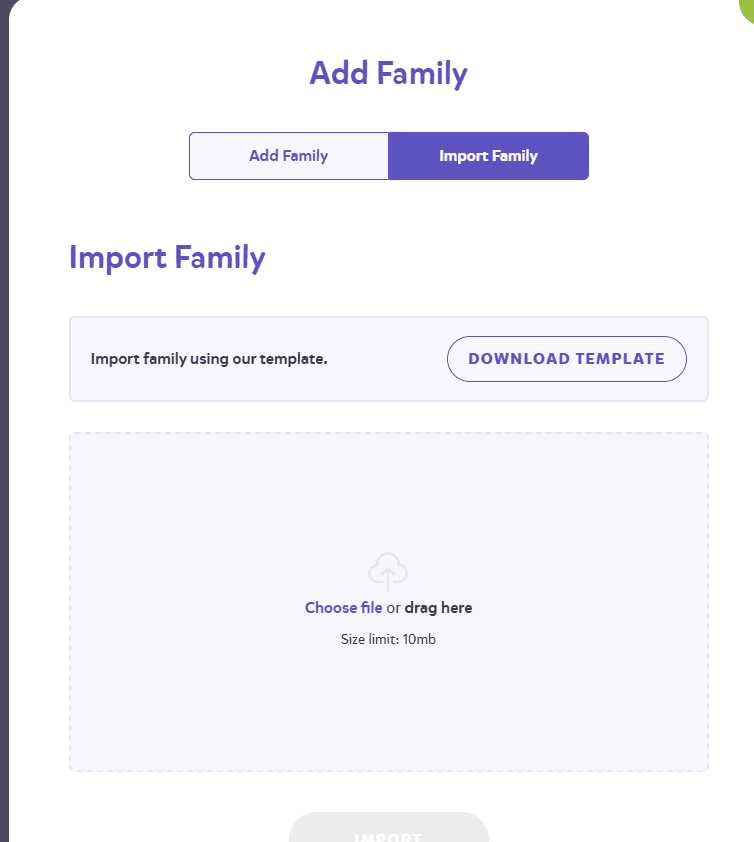
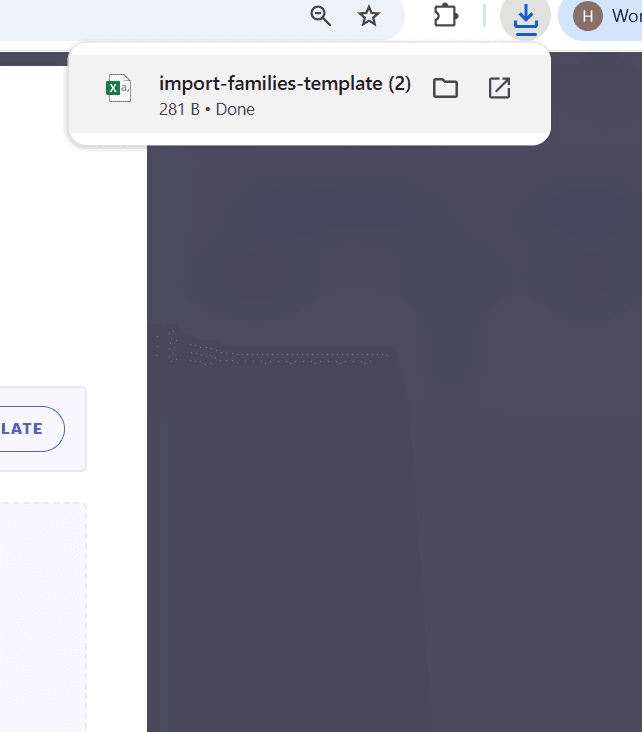
5. Open the template in Excel or Google Sheets.
6. Fill in the details for each family you want to import.
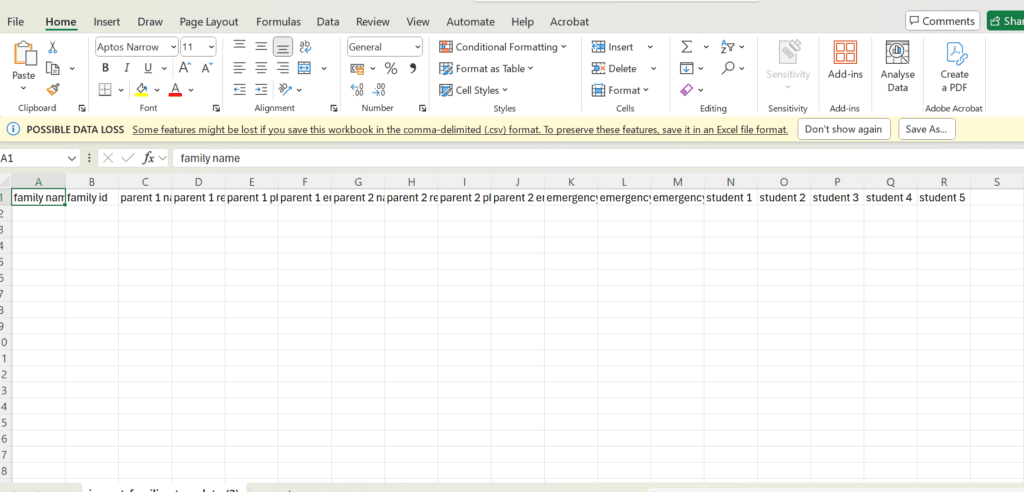
Any other required fields marked in the template. See this article here for more help on this.
7. Save the completed file as a CSV.
8. Return to the Bulk Import page and upload your CSV file.
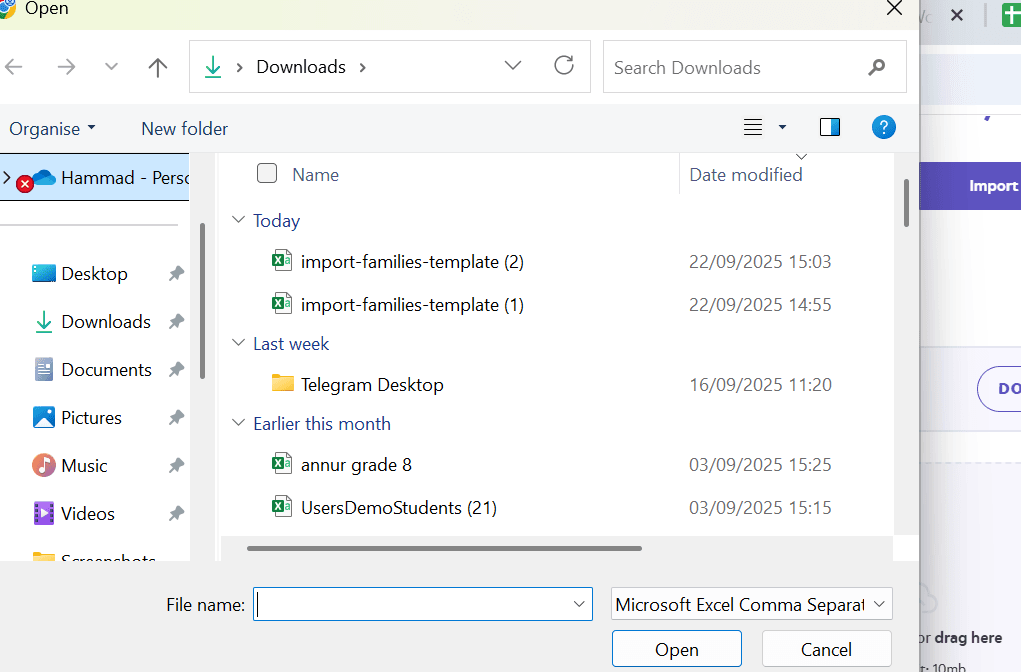
9. Click Import.
10. Wait for the system to process the file. You’ll see a summary of imported families.
11. If there are any errors, correct your CSV and re-upload.
12. Once imported successfully, families will automatically be linked with their children.
13. Families will receive an email invitation to activate their accounts
Tip: If you only need to add a single family manually, see our guide on How to Add Families and Connect Them with Your Students.
